


ContentMonk is now one place to manage everything that happens to your content, from the first idea to the live page on your site.
You can connect WordPress and import every article you've ever published. You can write, edit, and update content with AI inside ContentMonk and push the changes live in one click. You can see how every page on your site is actually performing, with traffic, citations, rankings, and acquisition sources all combined in a single view. And you can use everything you've already published as context for everything you write next.
Here's what's new:
- WordPress integration - import all your existing articles, then write, update, and publish directly from ContentMonk. One CMS, no more copy-paste.
- Page Analytics - see how every page on your site performs in one place: traffic, AI visibility, acquisition sources, SEO and AEO at the page level.
- Google Search Console and Google Analytics integrations - connect your data sources so ContentMonk has more to work with. Better data, better recommendations.
- Smarter Knowledge Base - turn the insights already hidden in your blog into context for every new article. Fast import, full control over what gets used.
- Update suggestions on any article - get refresh recommendations for any article in your library, on demand.
Connect WordPress and import your full content library
When you connect WordPress, every article you've ever published is imported into ContentMonk in a few clicks. From there, ContentMonk becomes the place where your entire content operation runs, end to end.
WordPress integration now helps you:
- Import every article from your blog into Content Editorial in one click
- Edit any imported article with AI directly inside ContentMonk
- Push changes live to WordPress in one click, no copy-paste
- Move new articles from ContentMonk to WordPress as drafts or published posts
- Set all WordPress metadata from ContentMonk - categories, tags, author, featured image, URL slug, meta title, meta description, and publish schedule, all in one place
- Get update suggestions on any imported article, on demand
- Edit live articles without affecting the published version until you decide to push the update
Note: When you edit an imported article inside ContentMonk, the live version on your site stays exactly as it is. The article moves into Drafts, so you know something has changed. The update only goes live when you click to push it.
Webflow integration is shipping next, with all the same capabilities. If you're a Webflow user, you won't be waiting much longer.
Page Analytics: see how every page on your site actually performs
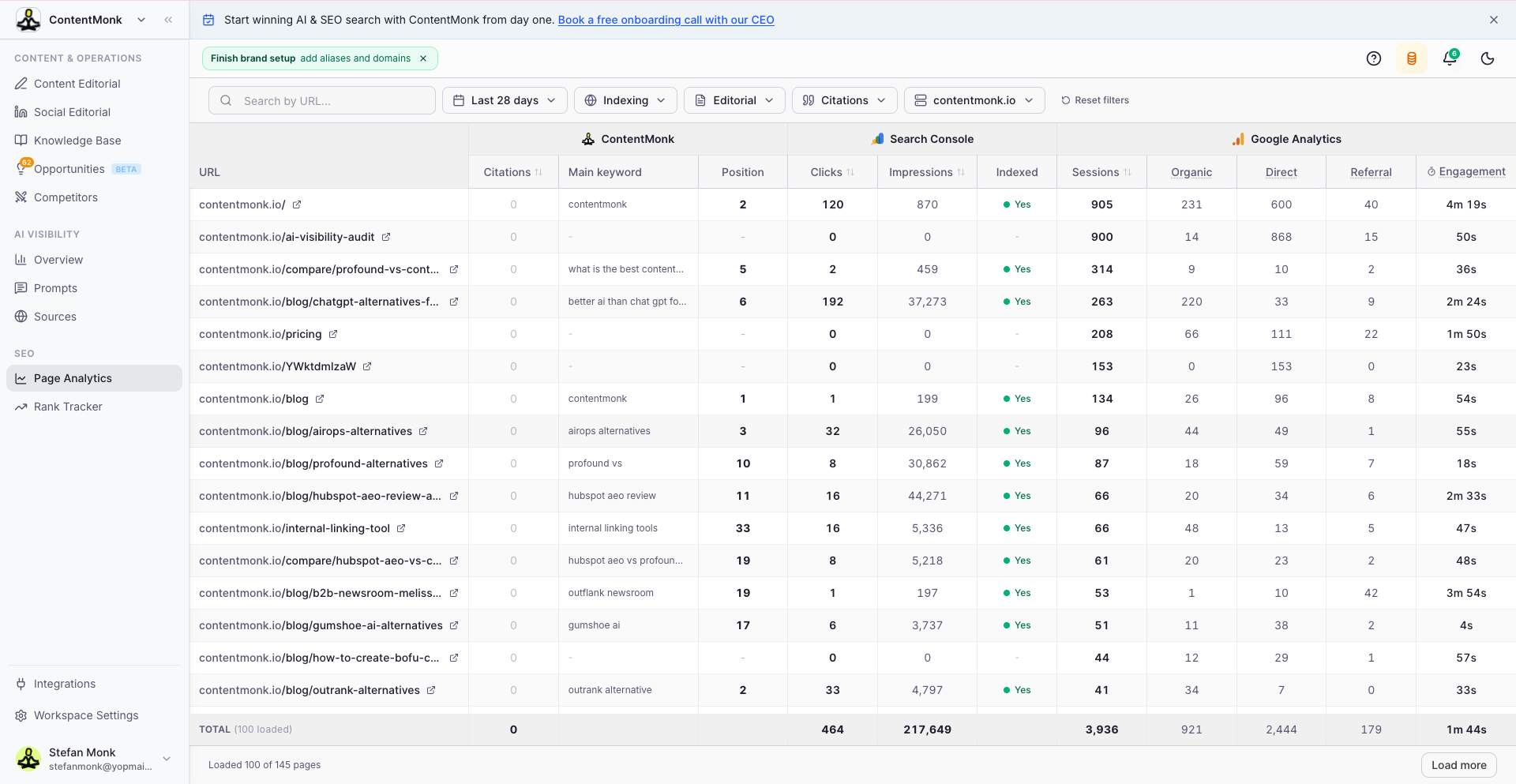
Page Analytics is one place to see how all of your pages are doing, across every metric that matters. Traffic, AI visibility, search rankings, citations, and acquisition sources.
Every URL on your website lives in a single table, with data pulled from three sources at once:
From ContentMonk:
- Total citations across AI engines
- Citation rate
- Number of prompts citing each page
- Main keyword and current ranking position
From Google Search Console:
- Organic clicks and impressions
- Whether the page is indexed
- Queries the page is ranking for
From Google Analytics:
- Total traffic per page
- Source breakdown (organic, direct, social, referral)
- Country and time-on-page data
Click any URL to open the page detail view. There you get a traffic graph over time, every keyword the page ranks for, every prompt citing it, and an option to jump straight to that article in Content Editorial.
For the full picture, Page Analytics needs Google Search Console and Google Analytics connected. Without those, you'll see the ContentMonk side of the data, citations and prompts. With them connected, you see traffic and rankings too, all on the same page.
Connect Google Search Console and Google Analytics for better recommendations

The more ContentMonk knows about your site, the better it can help you grow it. Connecting Google Search Console and Google Analytics gives ContentMonk access to the real performance data behind every page on your site, so the recommendations you get back are grounded in what's actually happening, not assumptions.
Both connections take two clicks from the Integrations panel.
Google Search Console brings in:
- Organic clicks and impressions per URL
- Indexed status for every page
- Full query data, so ContentMonk knows which keywords each page is showing up for
Google Analytics brings in:
- Total traffic per page
- Source breakdown (organic, direct, social, referral)
- Country and time-on-page data
Once connected, this data flows into Page Analytics, where you can see every URL on your site alongside its traffic, citations, rankings, and acquisition sources in a single view. Without GSC and GA connected, Page Analytics still works, but you only see the ContentMonk side of the picture. Connect them to fill it out.
You can connect just GSC, just GA, or both. ContentMonk works either way, just with better data behind every recommendation.
A Knowledge Base that builds itself
Connecting your CMS unlocks something that was previously a manual job: filling out your Knowledge Base.
When you connect WordPress, ContentMonk asks if you want to use your existing blog posts as Knowledge Base documents. If yes, you get two options:
- Let ContentMonk pick - choose how many of your highest-traffic articles to include, anywhere from 100 to 300. We cap it there to keep retrieval fast.
- I'll pick manually - select exactly which posts go in, no cap.
Either way, every selected article gets the Include when relevant scope by default. That means it'll pull into briefs only when the topic actually overlaps. You can change the scope or remove articles later, directly from the Content Editorial table.
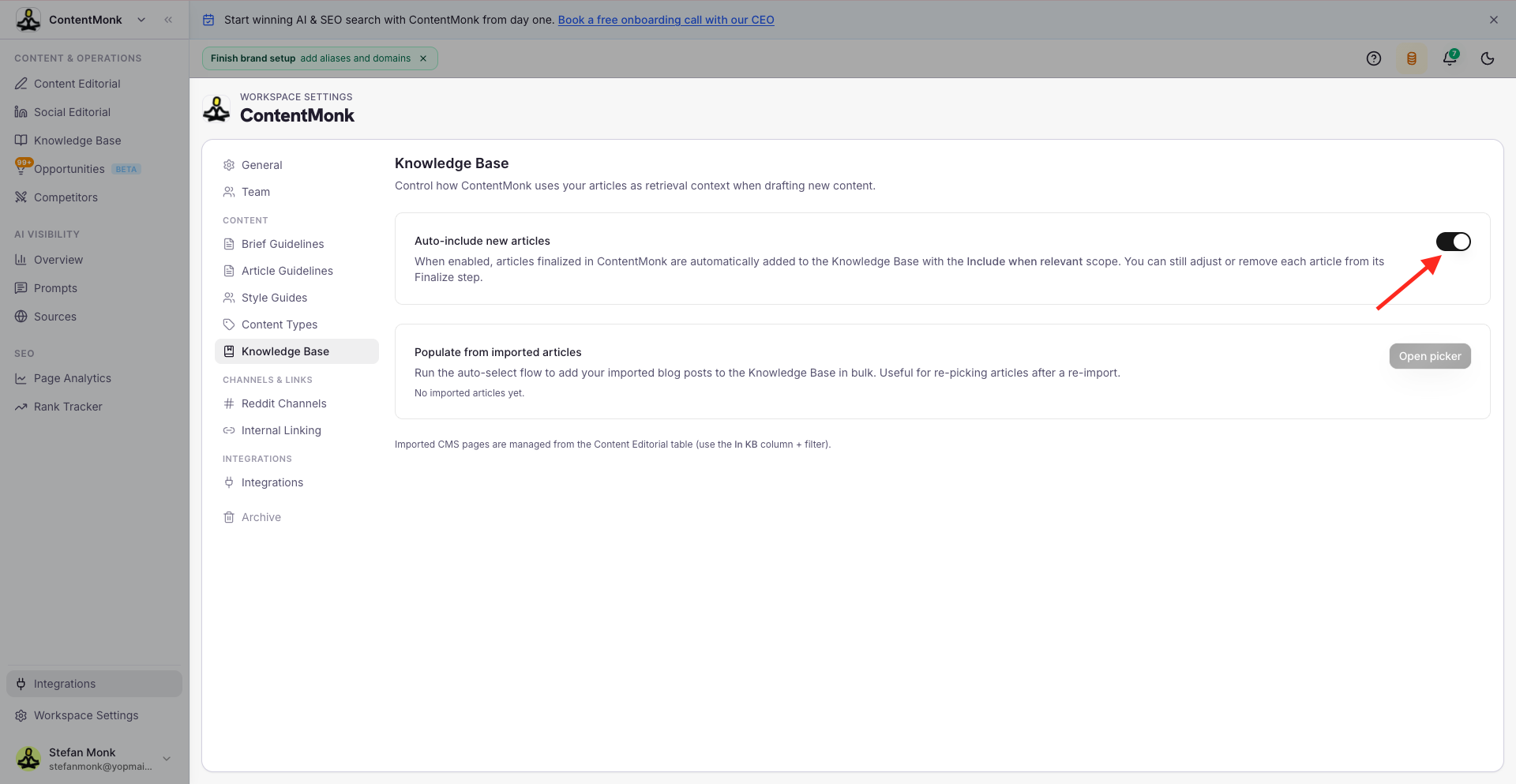
New articles you write inside ContentMonk can be added to the Knowledge Base automatically. Turn on the workspace-level default in Workspace Settings, and every finalized article lands in your Knowledge Base without any extra step. If you want different behavior for a specific article, you can always override the default when you publish it.
Your blog stops being just a content archive and becomes the foundation for every article you write next.
Get update suggestions on any article - on demand
For any published article in ContentMonk, you can now ask for update suggestions whenever you want.
There are three different angles you can update from, and you pick which one fits what you're trying to do:
- SEO update - ContentMonk pulls Google Search Console data for the article's URL and the keywords it's targeting, then looks at the top-ranking pages in SERPs to suggest what to add, change, or sharpen. Best when the article has been live long enough for GSC to gather data (usually 2-3 days after publish).
- AEO update - ContentMonk looks at which prompts cite this article across AI engines and what the top-cited pages are saying differently, then suggests updates to make the article a stronger answer. Available when at least one tracked AI prompt has cited the article in the last 90 days.
- Refresh content - ContentMonk reviews the article for outdated facts, stats, and references, and suggests fresh ones. Works any time, no data needed.
Suggestions land as draft comments on the existing article. The live page on your site doesn't change until you accept the suggestions and push the update.
Pick the angle that matches your goal. Refreshing facts on an evergreen explainer, sharpening a piece for SEO rankings, or strengthening a piece that AI engines already cite - each one runs the right kind of research without you having to set anything up.
Other Big Improvements
- Internal linking is now more accurate - with full CMS data, ContentMonk has better visibility into every URL on your site, so internal link suggestions get stronger right out of the gate.
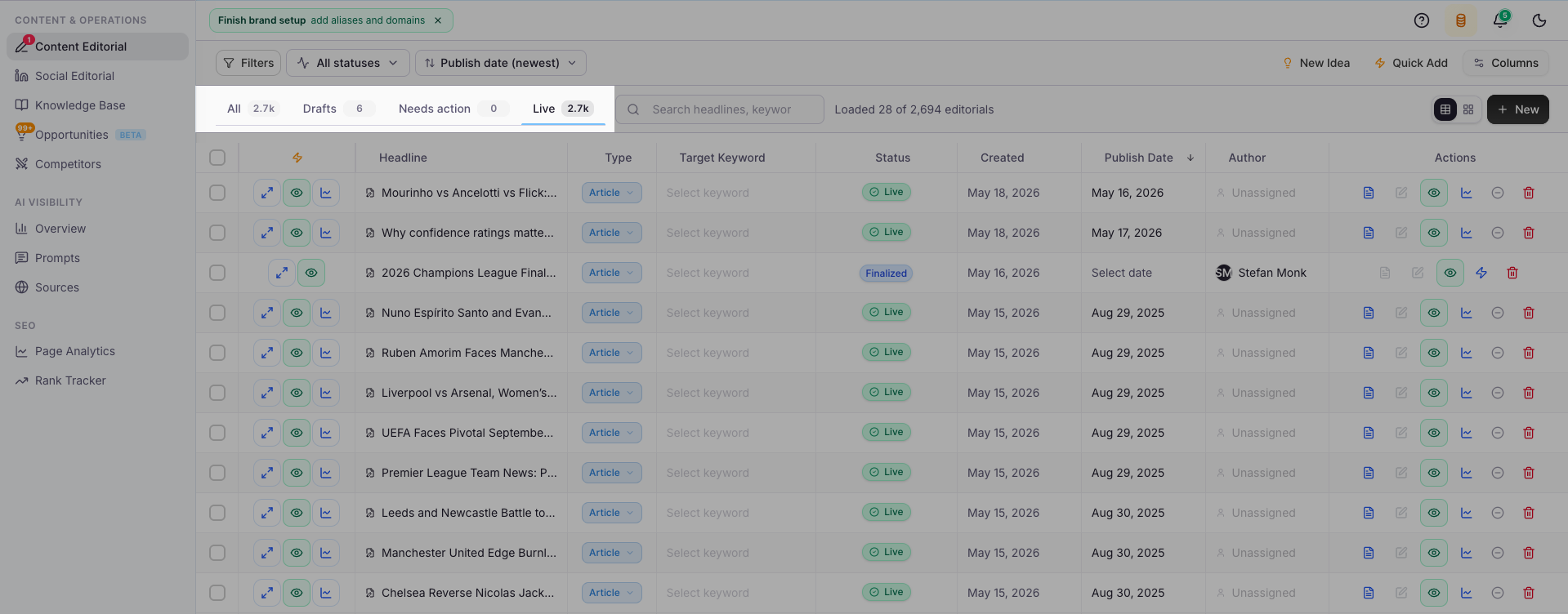
- Live and Draft toggle in Content Editorial - switch the table view between live pages and drafts in progress.
- Delete from CMS option - when you delete an article in ContentMonk, you can choose to delete the corresponding live page on WordPress in the same step.
What's next
Webflow integration is the next big one and it's already in active development. If you're on Webflow, you'll get the same workflow that just shipped for WordPress: import your full content library, write and edit inside ContentMonk, and publish or update live pages in one click.
After that, we're shipping on-site SEO health checks. ContentMonk will crawl your site, surface technical and on-page issues holding your pages back, and feed all of it into Page Analytics so you have one place to spot problems and act on them.
Everything in this release is live in your workspace now. To get started, head to Workspace Settings → Integrations and connect WordPress, Google Search Console, and Google Analytics. The more you connect, the more ContentMonk can do for you.
Go try it.
